HealthSync Developer Guide
Table of Contents
- Acknowledgements
- Setting Up, Getting Started
- Design
- Implementation
- Documentation, Logging, Testing, Configuration, DevOps
- Appendix: Requirements
- Appendix: Instructions for Manual Testing
- Glossary
- Appendix: Planned Enhancements
- Appendix: Effort
Acknowledgements
- This project is based on the AddressBook-Level3 project created by the SE-EDU initiative.
- The undo and redo features were inspired by the proposed implementation found in the AddressBook-Level 3's Developer Guide.
Setting up, getting started
Refer to the guide Setting up and getting started.
Design
💡 Tip: The .puml files used to create diagrams in this document can be found in the docs/diagrams folder. Refer to the PlantUML Tutorial at se-edu/guides to learn how to create and edit diagrams.
Architecture
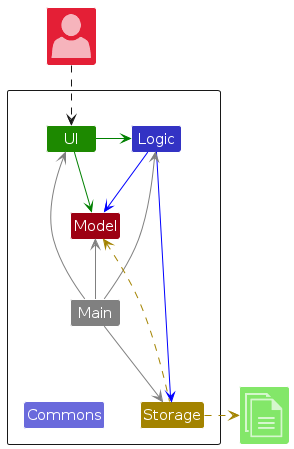
The Architecture Diagram given above explains the high-level design of the App.
Given below is a quick overview of main components and how they interact with each other.
Main components of the architecture
Main (consisting of classes Main and MainApp) is in charge of the app launch and shut down.
- At app launch, it initializes the other components in the correct sequence, and connects them up with each other.
- At shut down, it shuts down the other components and invokes cleanup methods where necessary.
The bulk of the app's work is done by the following four components:
UI: The UI of the App.Logic: The command executor.Model: Holds the data of the App in memory.Storage: Reads data from, and writes data to, the hard disk.
Commons represents a collection of classes used by multiple other components.
How the architecture components interact with each other
The Sequence Diagram below shows how the components interact with each other for the scenario where the user issues the command delete 1.
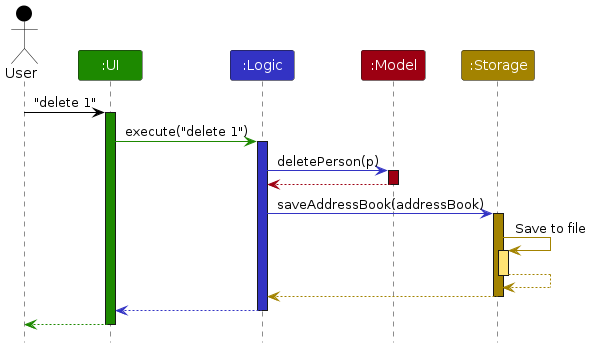
Each of the four main components (also shown in the diagram above),
- defines its API in an
interfacewith the same name as the Component. - implements its functionality using a concrete
{Component Name}Managerclass (which follows the corresponding APIinterfacementioned in the previous point.
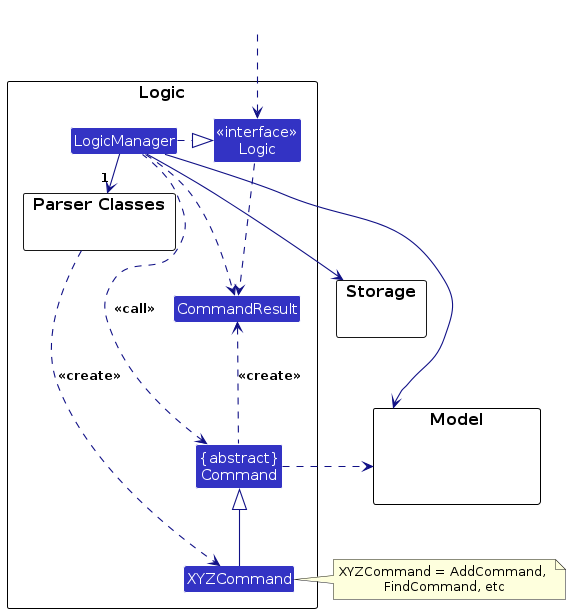
For example, the Logic component defines its API in the Logic.java interface and implements its functionality using the LogicManager.java class which follows the Logic interface. Other components interact with a given component through its interface rather than the concrete class (reason: to prevent outside component's being coupled to the implementation of a component), as illustrated in the (partial) class diagram below.
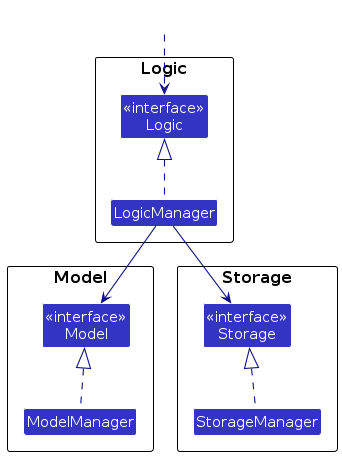
The sections below give more details of each component.
UI Component
The API of this component is specified in Ui.java.
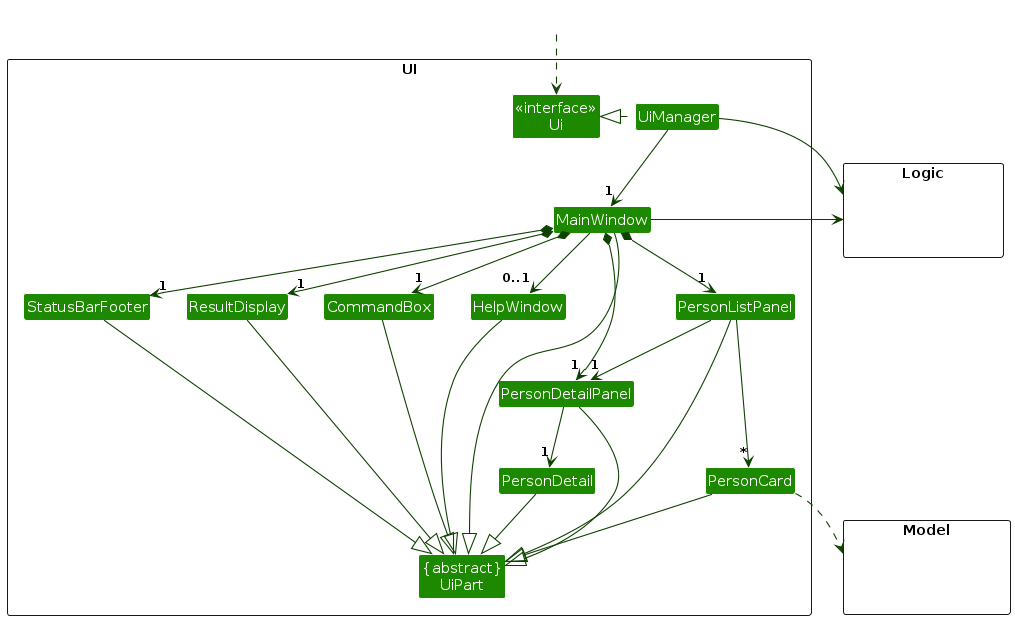
Overview
The MainWindow serves as the primary container for all UI components, orchestrating interactions between different elements and ensuring a seamless user experience for healthcare administrators managing patient records. Its layout is defined in MainWindow.fxml, which specifies the structure and arrangement of UI elements using JavaFX's XML-based markup.
The UI consists of a MainWindow that is composed of multiple UI parts, such as:
CommandBox– Handles user input, enabling administrators to quickly search, add, or update patient data.ResultDisplay– Displays the results of executed commands, offering immediate feedback on operations (e.g., updating a patient's record).PersonListPanel– Manages the list of patients (each represented as aPerson) displayed on the left side, facilitating easy browsing and selection of patient records.PersonCard– Represents a summarized view of a patient within thePersonListPanel, highlighting essential details such as the patient's name and contact information.PersonDetailPanel– Displays detailed attributes of the selected patient on the right side, ensuring that administrators have a comprehensive view of patient data.PersonDetail– Controls which patient details are shown in thePersonDetailPanel, ensuring that only relevant information is displayed.StatusBarFooter– Shows application status details, such as the number of patients currently loaded and other system notifications.
All UI components, including MainWindow, inherit from the abstract UiPart class, which encapsulates common UI functionalities and ensures consistency across the application.
Responsibilities of the UI Component
The UI component is responsible for managing the interface through which healthcare administrators interact with patient records. It:
- Executes user commands by interacting with the
Logiccomponent. - Listens for changes in
Modeldata (which includes patient records) and updates the UI accordingly. - Maintains a reference to the
Logiccomponent, as the UI depends on it to process user actions. - Displays
Personobjects (representing patient records) retrieved from theModelcomponent.
Layout & Functionality
Main Window (
MainWindow.fxml):
The central container that defines the overall structure of the application, ensuring a seamless user experience in managing patient data.MainWindowinitializes and manages key UI components such asCommandBox,ResultDisplay,PersonListPanel, andPersonDetailPanel.- It listens to user inputs from healthcare administrators and updates the display accordingly.
Left Panel:
ThePersonListPaneldisplays a list of patients. Each patient's summary is represented by aPersonCard, allowing administrators to quickly scan through patient records.Right Panel:
ThePersonDetailPanelpresents detailed information about the selected patient, withPersonDetailmanaging which fields are displayed to provide a comprehensive view of the patient's information.
Logic component
API : Logic.java
Here's a (partial) class diagram of the Logic component:
The sequence diagram below illustrates the interactions within the Logic component, taking execute("delete 1") API call as an example.
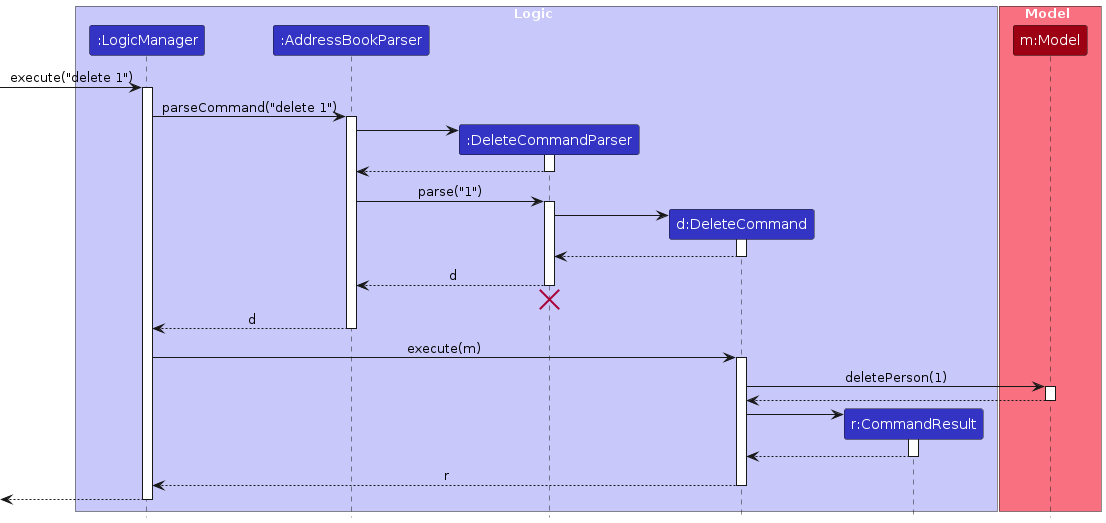
Note: The lifeline for DeleteCommandParser should end at the destroy marker (X) but due to a limitation of PlantUML, the lifeline continues till the end of diagram.
How the Logic component works:
- When
Logicis called upon to execute a command, it is passed to anAddressBookParserobject which in turn creates a parser that matches the command (e.g.,DeleteCommandParser) and uses it to parse the command. - This results in a
Commandobject (more precisely, an object of one of its subclasses e.g.,DeleteCommand) which is executed by theLogicManager. - The command can communicate with the
Modelwhen it is executed (e.g. to delete a person).
Note that although this is shown as a single step in the diagram above (for simplicity), in the code it can take several interactions (between the command object and theModel) to achieve. - The result of the command execution is encapsulated as a
CommandResultobject which is returned back fromLogic.
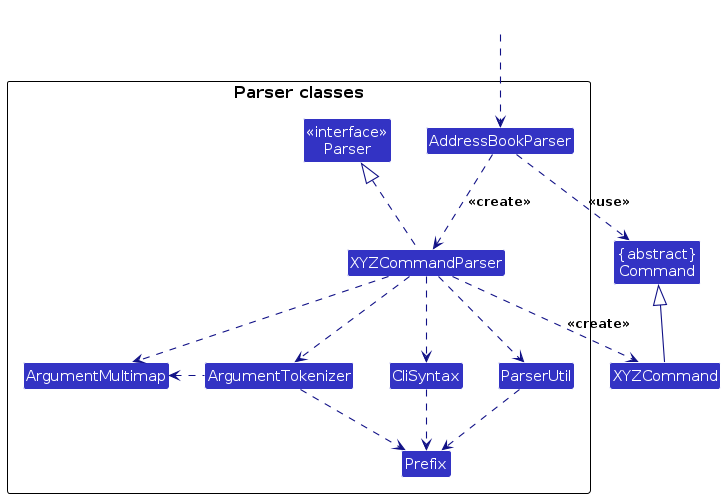
Here are the other classes in Logic (omitted from the class diagram above) that are used for parsing a user command:
How the parsing works:
- When called upon to parse a user command, the
AddressBookParserclass creates anXYZCommandParser(XYZis a placeholder for the specific command name e.g.,AddCommandParser) which uses the other classes shown above to parse the user command and create aXYZCommandobject (e.g.,AddCommand) which theAddressBookParserreturns back as aCommandobject. - All
XYZCommandParserclasses (e.g.,AddCommandParser,DeleteCommandParser, ...) inherit from theParserinterface so that they can be treated similarly where possible e.g, during testing.
Model component
API : Model.java
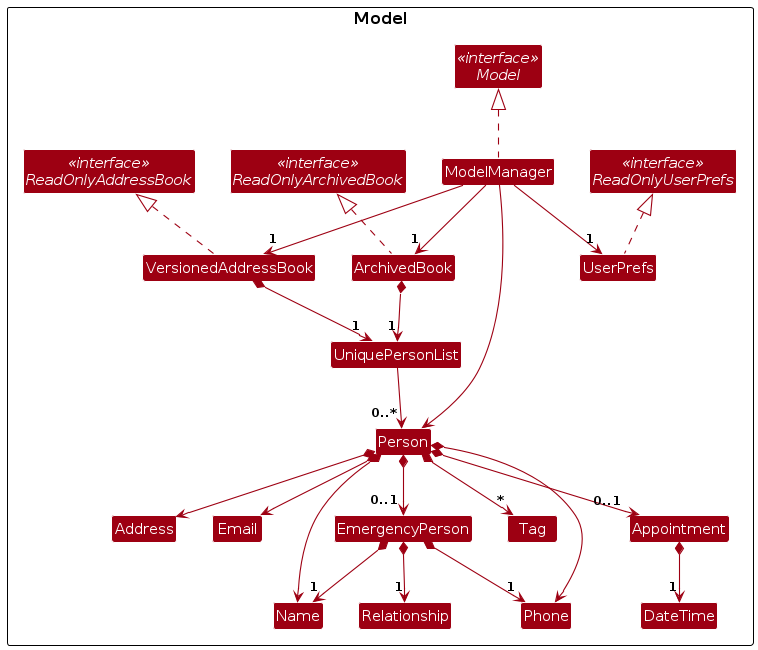
The Model component encapsulates and manages the core data of the application while remaining independent of the UI, Logic, and Storage components. Its responsibilities include:
Active Patient Data Management:
Active patient data is stored in aVersionedAddressBook, which maintains a complete collection ofPersonobjects in aUniquePersonList. This design supports undo/redo functionality by preserving previous states of the address book.Archived Patient Data Management:
Archived patient data is managed separately via anArchivedBook, which implements both theArchiveBookandReadOnlyArchivedBookinterfaces. This separation ensures that archived records remain distinct from active records while still providing controlled, read-only access.Filtered Person List:
The Model keeps a filtered list ofPersonobjects (e.g., as a result of search queries) as an unmodifiableObservableList<Person>. The UI binds to this list so that it automatically updates when the underlying data changes.User Preferences:
User-specific preferences are stored in aUserPrefsobject, which is exposed externally as aReadOnlyUserPrefsto prevent unwanted modifications by other components.
Storage component
API : Storage.java
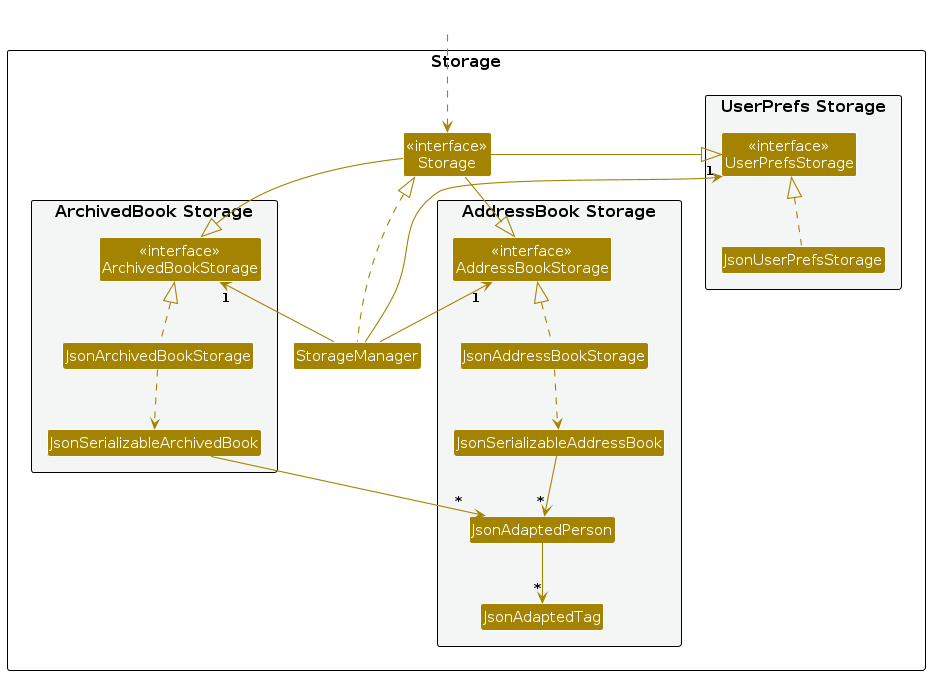
The Storage component,
- can save patient record data, archived patient data, and user preference data in JSON format, and read them back into corresponding objects.
- inherits from
AddressBookStorage,ArchivedBookStorage, andUserPrefsStorage, which means it can be treated as any of them (depending on the required functionality in a given context). - delegates the actual reading and writing of JSON data to specific implementations like
JsonAddressBookStorage,JsonArchivedBookStorage, andJsonUserPrefsStorage. - uses helper classes such as
JsonSerializableAddressBookandJsonSerializableArchivedBookto convert between model data and JSON. - further relies on classes like
JsonAdaptedPersonandJsonAdaptedTagto handle conversion of individual elements within the model. - depends on some classes in the Model component (because the Storage component’s job is to save/retrieve objects that belong to the Model).
Note: Although the storage file is named addressbook.json, it actually stores patient data.
Note: Although the storage file is named archivedbook.json, it actually stores archived patient data.
Common classes
Classes used by multiple components are in the seedu.address.commons package.
Implementation
This section describes some noteworthy details on how certain features are implemented.
Undo/redo feature
Implementation
The undo/redo mechanism is facilitated by VersionedAddressBook. It extends AddressBook with an undo/redo history, stored internally as an addressBookStateList and currentStatePointer. Additionally, it implements the following operations:
VersionedAddressBook#commit()— Saves the current address book state in its history, maintains a limited history of two states, and removes older states.VersionedAddressBook#undo()— Restores the previous address book state from its history.VersionedAddressBook#redo()— Restores a previously undone address book state from its history.
These operations are exposed in the Model interface as Model#commitAddressBook(), Model#undoAddressBook() and Model#redoAddressBook() respectively.
Given below is an example usage scenario and how the undo/redo mechanism behaves at each step.
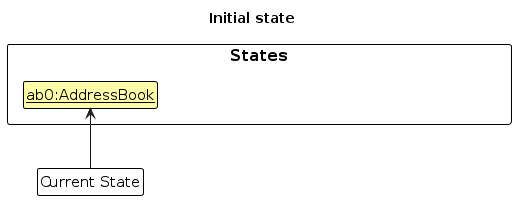
Step 1. The user launches the application for the first time. The VersionedAddressBook will be initialized with the initial address book state, and the currentStatePointer pointing to that single address book state.
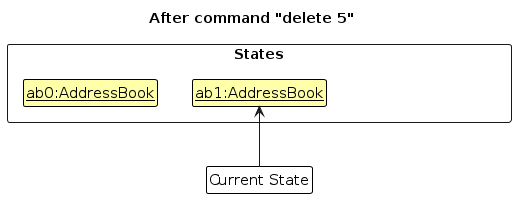
Step 2. The user executes delete 5 command to delete the 5th person in the address book. The delete command sets isLastCommandArchiveRelated to false and calls Model#commitAddressBook(), causing the modified state of the address book after the delete 5 command to be saved in the addressBookStateList, and the currentStatePointer is shifted to the newly inserted address book state.
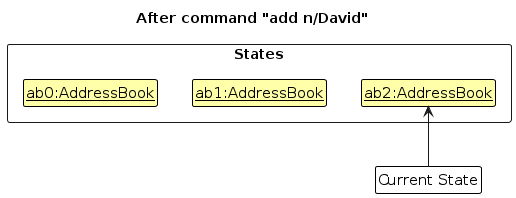
Step 3. The user executes add n/David … to add a new person. The add command also calls Model#commitAddressBook(), causing another modified address book state to be saved into the addressBookStateList. At this point, addressBookStateList will contain only the two most recent states due to the limit implemented in commit().
Note: If a command fails its execution, it will not call Model#commitAddressBook(), so the address book state will not be saved into the addressBookStateList.
Step 4. The user now decides that adding the person was a mistake, and decides to undo that action by executing the undo command. Before executing the undo operation, the UndoCommand checks if the last command was archive-related by calling model.isLastCommandArchiveRelated(). If it was, the undo operation is not allowed, and an error message is shown. Otherwise, the undo command will call Model#undoAddressBook(), which will shift the currentStatePointer once to the left, pointing it to the previous address book state, and restores the address book to that state.
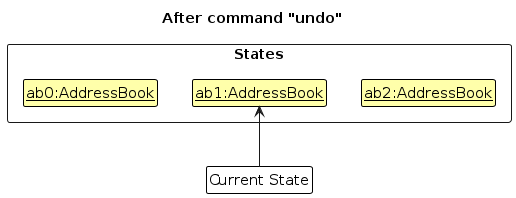
Note: If the currentStatePointer is at index 0, pointing to the initial AddressBook state, then there are no previous AddressBook states to restore. The undo command uses Model#canUndoAddressBook() to check if this is the case. If so, it will return an error to the user rather than attempting to perform the undo.
The following sequence diagram shows how an undo operation goes through the Logic component:
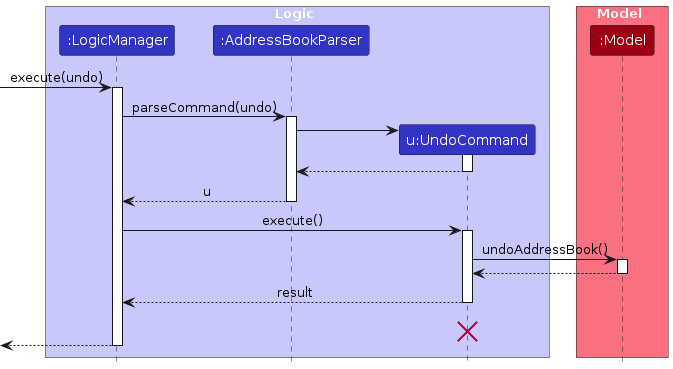
Note: The lifeline for UndoCommand should end at the destroy marker (X) but due to a limitation of PlantUML, the lifeline reaches the end of diagram.
Similarly, how an undo operation goes through the Model component is shown below:
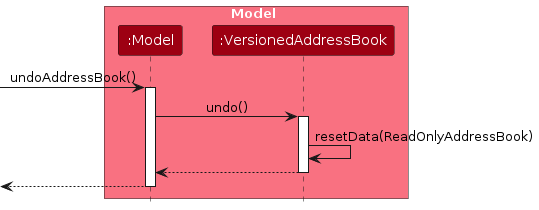
The redo command does the opposite — it calls Model#redoAddressBook(), which shifts the currentStatePointer once to the right, pointing to the previously undone state, and restores the address book to that state.
Note: If the currentStatePointer is at index addressBookStateList.size() - 1, pointing to the latest address book state, then there are no undone AddressBook states to restore. The redo command uses Model#canRedoAddressBook() to check if this is the case. If so, it will return an error to the user rather than attempting to perform the redo.
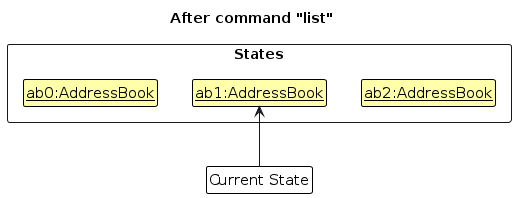
Step 5. The user then decides to execute the command list. Commands that do not modify the address book, such as list, will usually not call Model#commitAddressBook(), Model#undoAddressBook() or Model#redoAddressBook(). Thus, the addressBookStateList remains unchanged.
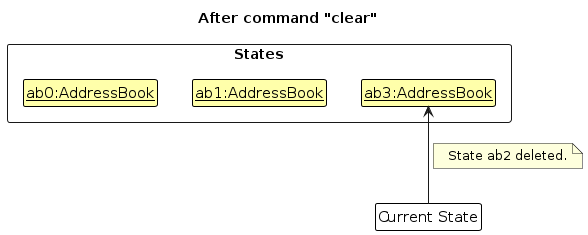
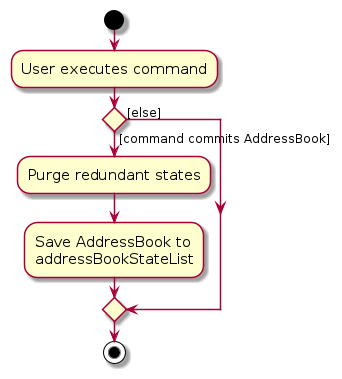
Step 6. The user executes clear, which calls Model#commitAddressBook(). Since the currentStatePointer is not pointing at the end of the addressBookStateList, all address book states after the currentStatePointer will be purged. The implementation also ensures that only the two most recent states are kept in memory by removing older states when a new state is added. This approach helps manage memory usage while still allowing for basic undo/redo functionality.
The following activity diagram summarizes what happens when a user executes a new command:
Design considerations:
Aspect: How undo & redo executes:
Alternative 1 (current choice): Saves the entire address book with a limited history of two states.
- Pros: Easy to implement and memory efficient.
- Cons: Limited to only undoing the most recent operation.
Alternative 2: Individual command knows how to undo/redo by itself with unlimited history.
- Pros: Will use less memory per state (e.g. for
delete, just save the person being deleted). - Cons: More complex implementation required for each command.
- Pros: Will use less memory per state (e.g. for
Aspect: Handling of archive-related commands:
Alternative 1 (current choice): Prevent undo operations for archive-related commands.
- Pros: Simplifies the implementation and prevents unexpected behavior with archived data.
- Cons: Reduces flexibility for users who might want to undo archiving operations.
Alternative 2: Support undo for all command types including archive operations.
- Pros: Provides a consistent user experience across all commands.
- Cons: Requires more complex state management to handle transitions between normal and archive modes.
Documentation, logging, testing, configuration, dev-ops
Appendix: Requirements
Product scope
Target user profile:
- User Role: Healthcare administrators
- Workplace: Family clinics
- Responsibilities
- Maintain and update patient records and associated emergency contact information.
- Effortlessly monitor and stay on top of patients’ upcoming appointments, reducing scheduling conflicts and ensuring prompt follow-ups.
- Efficiently manage and update essential patient data, including insurance details, allergies, medical conditions, and treatment history, to ensure comprehensive and accurate medical records.
Value proposition
HealthSync allows healthcare staff to efficiently organize patient records and manage critical emergency contact details within one unified platform By providing quick access to up-to-date information, administrators can seamlessly connect with patients' emergency contacts, ensuring efficient communication and prompt action, particularly in managing recovery progress and treatment schedules.
User Stories
Priorities: High (must have) - * * *, Medium (nice to have) - * *, Low (unlikely to have) - *
| Priority | As a … | I want to … | So that I can… |
|---|---|---|---|
* * * | healthcare administrator | quickly locate a patient's emergency contacts | promptly notify their next of kin in life-threatening medical situations |
* * * | healthcare administrator | accurately upload and store hospital patients' contact details | ensure their information is reliably available for communication and record-keeping |
* * * | healthcare professional | quickly identify a patient's medical conditions and allergies | understand the patient’s condition and provide safe and effective care |
* * * | new user | have sample data to work with | understand how to use the application |
* * * | healthcare administrator | schedule an appointment for a patient | keep track of upcoming visits to the clinic |
* * * | healthcare administrator | efficiently update and manage patient schedules | ensure that doctors' time is managed well and appointments do not overlap |
* * * | healthcare administrator | identify patient allergies using tags | prescribe medicines safely and avoid malpractice |
* * * | healthcare administrator | have an overview of all current patients | quickly access and manage active patient records |
* * * | healthcare administrator | add an insurance tag to a patient | document their insurance details for billing and verification purposes |
* * * | healthcare administrator | add a medical condition tag to a patient | keep a clear medical history for safe treatment and reference |
* * * | healthcare administrator | add a new patient to the system | begin tracking their appointments, contact, and medical details |
* * * | healthcare administrator | edit a patient's details | keep their records accurate and up to date |
* * * | healthcare administrator | find a patient by name | quickly bring up a specific patient’s record |
* * * | user | access help at any time | see available commands and how to use them |
* * | healthcare administrator | undo the last operation | recover from accidental changes or deletions |
* * | healthcare administrator | redo the last undone operation | reverse an undo if it was done by mistake |
* * | healthcare administrator | delete a specific tag from a patient | remove outdated or incorrect medical information |
* | user with many patients | sort patients by name | locate a patient quickly and efficiently |
* | healthcare administrator | archive a patient who has not visited in years | keep the list of current patients clean and manageable |
* | healthcare administrator | unarchive a patient from the archive list | update their information if they return to the clinic |
* | healthcare administrator | view a list of all archived patients | easily access records of patients who are no longer active |
* | healthcare administrator | clear all patient entries | reset the system when starting fresh or during testing phases |
* | healthcare administrator | delete a patient from the system | remove incorrect or duplicated records |
* | user | exit the application | close the programme when I’m done using it |
Use Cases
(For all use cases below, the System is HealthSync and the Actor is the Healthcare Administrator, unless specified otherwise.)
UC01 - View Help Window
Main Success Scenario (MSS):
- Healthcare Administrator chooses to view the help window.
- HealthSync displays the link to the user guide.
- Use case ends.
UC02 - Add Patient
Main Success Scenario (MSS):
- Healthcare Administrator chooses to add a new patient.
- HealthSync prompts the user to enter:
- Patient's name.
- Patient's phone number.
- Patient's email address.
- Patient's residential address.
- Healthcare Administrator enters the requested details.
- HealthSync successfully adds the patient.
- Use case ends.
Extensions:
- 3a. Healthcare Administrator enters incomplete or invalid details (e.g. phone number contains letters).
- 3a1. HealthSync informs the user of the errors.
- Use case resumes from step 2.
- 3b. A patient with the same unique identifier (i.e. name and phone number, name and email address) already exists.
- 3b1. HealthSync notifies the user of the duplication.
- 3b2. Healthcare Administrator can choose to:
- 3b2a. Update the existing record: - 3b2a1. Transition to UC02 - Edit Patient Details.
- 3b2b. Cancel the addition: - 3b2b1. Use case ends.
- 3b2c. Provide corrected details: - 3b2c1. Use case resumes from step 2.
- 4a. Healthcare Administrator chooses to undo the command.
- 4a1. Transition to UC09 - Undo Previous Command.
UC03 - Update Patient Schedule
Main Success Scenario (MSS):
- Healthcare Administrator requests to update a patient’s appointment.
- HealthSync prompts the user to enter:
- Patient index.
- New or modified appointment details (i.e. appointment date, time).
- Healthcare Administrator inputs the updated appointment.
- HealthSync updates the patient’s appointment successfully.
- Use case ends.
Extensions:
- 3a. The given index is invalid (out of range or does not exist).
- 3a1. HealthSync informs the user of the invalid index.
- Use case resumes from step 2.
- 3b. The entered appointment details are invalid (e.g., overlapping appointments, incorrect format).
- 3b1. HealthSync displays an error message.
- 3b2. Healthcare Administrator corrects the details and resubmits.
- Use case resumes from step 2.
- 4a. Healthcare Administrator chooses to undo the command.
- 4a1. Transition to UC09 - Undo Previous Command.
UC04 - List Patients
Main Success Scenario (MSS):
- Healthcare Administrator chooses to list all patients.
- HealthSync displays the complete list of patients.
- Use case ends.
UC05 - Sort Patients by Name
Main Success Scenario (MSS):
- Healthcare Administrator requests to sort the list of patients by name.
- HealthSync sorts the patient list in ascending alphabetically order.
- HealthSync displays the sorted patient list.
- Use case ends.
Extensions:
- 2a. Healthcare Administrator chooses to undo the command.
- 2a1. Transition to UC09 - Undo Previous Command.
UC06 - Sort Patients by Appointment
Main Success Scenario (MSS)
- Healthcare Administrator requests to sort the list of patients by appointment.
- HealthSync sorts the patient list in ascending lexicographical order by appointment date.
- HealthSync displays the sorted patient list with patients having appointments listed first (nearest upcoming appointments at the top), followed by patients without appointments.
- Use case ends.
Extensions:
3a. Healthcare Administrator chooses to undo the command.
- 3a1. Transition to UC09 - Undo Previous Command.
3b. The sorting causes unexpected results due to invalid appointment data.
- 3b1. HealthSync displays an error message.
- 3b2. HealthSync reverts to the original order.
- Use case resumes from step 1.
UC07 - Edit Patient Details
Main Success Scenario (MSS):
- Healthcare Administrator requests to edit a patient’s details.
- HealthSync prompts the user to enter the following details:
- Index of the patient to be edited.
- New information for the field to be updated.
- Healthcare Administrator inputs the new information.
- HealthSync asks for confirmation.
- Healthcare Administrator confirms the edit.
- HealthSync updates the patient’s details successfully.
- Use case ends.
Extensions:
- 3a. The given index is invalid (out of range).
- 3a1. HealthSync informs the user of the invalid index.
- Use case resumes from step 2.
- 3b. The entered details are invalid (e.g. phone number contains letters).
- 3b1. HealthSync informs the user of the invalid details.
- Use case resumes from step 2.
- 4a. Healthcare Administrator does not confirm the action.
- 4a1. HealthSync cancels the operation.
- Use case ends.
- 4b. Healthcare Administrator inputs an invalid response (not 'y' or 'n') when confirming.
- 4b1. HealthSync displays an error message indicating the invalid input.
- 4b2. Action is cancelled.
- Use case ends.
- 6a. Healthcare Administrator chooses to undo the command.
- 6a1. Transition to UC09 - Undo Previous Command.
UC08 - Add an Emergency Contact
Main Success Scenario (MSS):
- Healthcare Administrator requests to add an emergency contact for a patient.
- HealthSync prompts the user to enter:
- Patient index.
- Emergency contact’s name.
- Emergency contact’s phone number.
- Relationship to the patient.
- Healthcare Administrator provides the details.
- HealthSync adds the emergency contact to the patient’s record.
- HealthSync confirms successful addition.
- Use case ends.
Extensions:
- 3a. The given index is invalid (out of range or does not exist).
- 3a1. HealthSync informs the user of the invalid index.
- Use case resumes from step 2.
- 3b. The entered details are invalid (e.g. phone number contains letters).
- 3b1. HealthSync informs the user of the invalid details.
- Use case resumes from step 2.
- 5a. Healthcare Administrator chooses to undo the command.
- 5a1. Transition to UC09 - Undo Previous Command.
UC09 - Find Patients
Main Success Scenario (MSS):
- Healthcare Administrator chooses to find patients by name.
- HealthSync prompts the Healthcare Administrator to enter keywords for the search.
- Healthcare Administrator enters the keywords (case-insensitive).
- HealthSync searches the patients' name and phone number for the given keywords.
- HealthSync displays the list of patients whose details match at least one of the entered keywords.
- Use case ends.
Extensions:
- 4a. No patients match the given keywords.
- 4a1. HealthSync displays a message informing the user that 0 matches were found.
- Use case ends.
UC10 - Archive Patient
Main Success Scenario (MSS):
- Healthcare Administrator chooses to archive a patient.
- HealthSync prompts the Healthcare Administrator to enter the index of the patient to be archived.
- Healthcare Administrator provides the patient index.
- HealthSync archives the patient’s record.
- HealthSync confirms successful archiving.
- Use case ends.
Extensions:
- 3a. The given index is invalid (out of range or does not exist).
- 3a1. HealthSync informs the user of the invalid index.
- Use case resumes from step 2.
- 5a. Healthcare Administrator chooses to undo the command.
- 5a1. Transition to UC09 - Undo Previous Command.
UC11 - List Archived Patients
Main Success Scenario (MSS):
- Healthcare Administrator chooses to view the list of archived patients.
- HealthSync retrieves and displays the list of archived patients.
- HealthSync confirms successful display of list of archived patients.
- Use case ends.
Extensions:
- 2a. Healthcare Administrator tries to use any command other than
find,unarchive, orlistin archive mode.- 2a1. HealthSync informs the user that the command cannot be executed in archive mode.
- 2a2. Use case ends.
UC12 - Unarchive Patient
Main Success Scenario (MSS):
- Healthcare Administrator chooses to unarchive a patient.
- HealthSync prompts the user to enter the index of the patient to be unarchived.
- Healthcare Administrator provides the patient index.
- HealthSync unarchives the patient’s record.
- HealthSync confirms successful unarchiving.
- Use case ends.
Extensions:
- 2a. The given index is invalid (out of range or does not exist).
- 2a1. HealthSync informs the user of the invalid index.
- Use case resumes from step 2.
UC13 - Delete a Patient
Main Success Scenario (MSS):
- Healthcare Administrator requests to delete a patient’s contact.
- HealthSync prompts the user to enter the index of the patient to be deleted.
- Healthcare Administrator provides the patient index.
- HealthSync asks for confirmation.
- Healthcare Administrator confirms the deletion.
- HealthSync deletes the patient’s contact from the system.
- HealthSync confirms successful deletion.
- Use case ends.
Extensions:
- 3a. The given index is invalid (out of range or does not exist).
- 3a1. HealthSync informs the user of the invalid index.
- Use case resumes from step 2.
- 4a. Healthcare Administrator does not confirm the action.
- 4a1. HealthSync cancels the operation.
- Use case ends.
- 4b. Healthcare Administrator inputs an invalid response (not 'y' or 'n') when confirming.
- 4b1. HealthSync displays an error message indicating the invalid input.
- 4b2. Action is cancelled.
- Use case ends.
- 7a. Healthcare Administrator chooses to undo the command.
- 7a1. Transition to UC09 - Undo Previous Command.
UC14 - Clear Patient List
Main Success Scenario (MSS):
- Healthcare Administrator chooses to clear the entire patient list.
- HealthSync asks for confirmation.
- Healthcare Administrator confirms the edit.
- HealthSync clears all patients from the system.
- HealthSync confirms the list has been cleared.
- Use case ends.
Extensions:
- 3a. Healthcare Administrator does not confirm the action.
- 3a1. HealthSync cancels the operation.
- Use case ends.
- 3b. Healthcare Administrator inputs an invalid response (not 'y' or 'n') when confirming.
- 3b1. HealthSync displays an error message indicating the invalid input.
- 3b3. Action is cancelled.
- Use case ends.
- 5a. Healthcare Administrator chooses to undo the command.
- 5a1. Transition to UC09 - Undo Previous Command.
UC15 - Add Tag to Patient
Main Success Scenario (MSS):
- Healthcare Administrator chooses to add tag(s) to a patient.
- HealthSync prompts the user to enter:
- Patient index.
- Tag(s) to add.
- Healthcare Administrator enters the index and the tag(s).
- HealthSync validates the index and tags.
- HealthSync adds the valid tags to the patient and displays the updated tag list.
- Use case ends.
Extensions:
- 3a. The given index is invalid (out of range or does not exist).
- 3a1. HealthSync informs the user of the invalid index.
- Use case resumes from step 2.
- 3b. The tag(s) input is invalid (e.g. tag name is not alphanumeric).
- 3b1. HealthSync informs the user of the invalid input.
- Use case resumes from step 2.
- 4a. The tag(s) already exist.
- 4a1. HealthSync informs the user of the duplication.
- Use case resumes from step 2.
- 5a. Healthcare Administrator chooses to undo the command.
- 5a1. Transition to UC09 - Undo Previous Command.
UC16 - Delete Tag from Patient
Main Success Scenario (MSS):
- Healthcare Administrator chooses to delete tag(s) from a patient.
- HealthSync prompts the user to enter:
- Patient index.
- Tag(s) to delete.
- Healthcare Administrator enters the index and tag(s).
- HealthSync checks if the tag(s) exist.
- HealthSync removes valid tag(s) and shows the updated tag list.
- Use case ends.
Extensions:
- 3a. The given index is invalid (out of range or does not exist).
- 3a1. HealthSync informs the user of the invalid index.
- Use case resumes from step 2.
- 4a. The tag(s) do not exist.
- 4a1. HealthSync warns the user of the invalid tag.
- Use case resumes from step 2.
- 5a. Healthcare Administrator chooses to undo the command.
- 5a1. Transition to UC09 - Undo Previous Command.
UC17 - Undo Previous Command
Main Success Scenario (MSS):
- Healthcare Administrator chooses to undo the most recent modifying command.
- HealthSync checks if there is a previous state to revert to.
- HealthSync reverts the application to the previous state.
- HealthSync confirms the undo action.
- Use case ends.
Extensions:
- 2a. No previous state available to undo.
- 2a1. HealthSync informs the user that there is nothing to undo.
- Use case ends.
- 2b. Undo has already been used.
- 2b1. HealthSync informs the user that there is nothing to undo.
- Use case ends.
- 2c. The most recent command is a
undo,redoorfindorlistcommand.- 2c1. HealthSync informs the user that there is nothing to undo.
- Use case ends.
- 2d. The most recent command is an
archivecommand.- 2d1. HealthSync informs the user that undo cannot be performed for the archive command.
- Use case ends.
UC18 - Redo Last Undone Command
Main Success Scenario (MSS):
- Healthcare Administrator chooses to redo the last undone command.
- HealthSync checks if there is a redo-able state.
- HealthSync re-applies the previously undone command.
- HealthSync confirms the redo action.
- Use case ends.
Extensions:
- 2a. No command available to redo.
- 2a1. HealthSync informs the user that there is nothing to redo.
- Use case ends.
UC19 - Exit Application
Main Success Scenario (MSS):
- Healthcare Administrator chooses to exit the application.
- HealthSync saves the application state.
- HealthSync closes the application.
- Use case ends.
Non-Functional Requirements
Reliability and Availability:
System Uptime: HealthSync must be available for use at least 99% of the time, especially during clinic operating hours. Regular maintenance should be scheduled during off-peak times.
Memory Recovery and Backup: Patient data must be backed up daily to prevent data loss. The system should be able to recover from a backup within 2 hours of a failure.
Performance Requirements:
Responsiveness: HealthSync should respond to user commands (e.g., adding, editing, or viewing patient data) within 3 seconds for typical operations under normal usage conditions (i.e., up to 1000 patient records in the database).
Scalability: HealthSync should be able to handle up to 5000 patient records without significant performance degradation. Basic operations, such as editing or adding patient records, should not exceed a response time of 4 seconds under this load.
Concurrency: HealthSync should be able to handle up to 50 concurrent patients without noticeable sluggishness in performance for typical use.
Usability Requirements:
Command Efficiency: A user with above-average typing speed for regular English text (i.e., not code or system admin commands) should be able to accomplish most tasks faster using commands than with the mouse.
Error Handling and Feedback: The system must provide immediate feedback (within 1 second) when an error occurs, such as invalid input or missing fields. The user should be able to correct errors without restarting the operation.
Data and Storage Requirements:
Human-Editable File Format: Patient information should be stored in a human-readable and editable format (e.g., .json or .csv) so that administrators can manually access and modify data if needed.
Data Integrity: The system must ensure that no data is lost or corrupted during common operations (e.g., adding, updating, or deleting records). Transaction-like behavior must be implemented to ensure all data operations either succeed fully or fail without partially corrupting data.
Compliance and Security:
- Healthcare Data Protection Compliance: HealthSync must comply with relevant healthcare data protection regulations, such as PDPA, to ensure that patient data is handled securely and confidentially.
Compatibility and Portability:
- Cross-Platform Support: HealthSync must be compatible with mainstream operating systems (Windows, macOS, Linux) and function seamlessly on systems with Java 17 or higher installed.
Maintainability and Extensibility:
Modular Design: The system should be designed with a modular architecture, allowing for easy future extensions such as additional data fields, user roles, or features (e.g., appointment scheduling or integration with electronic health records).
Testability: HealthSync must be easily testable, with automated tests that can cover at least 70% of the codebase. Core features (e.g., adding a patient record, deleting outdated patient records) should have dedicated test cases.
Appendix: Instructions for Manual Testing
Given below are instructions to test the app manually.
Note: These instructions only provide a starting point for testers to work on; testers are expected to do more exploratory testing.
Launch and shutdown
Initial Launch
Download the latest jar file here and copy into an empty folder
Open a terminal window and use the
cdcommand into the same folderEnter
java -jar HealthSync.jarinto the terminal. The window size may not be optimum initially but it can be sized.
Saving Window Preferences
Resize the window to an optimum size. Move the window to a different location. Close the window.
Re-launch the app by double-clicking the jar file.
Expected: The most recent window size and location is retained.
Shutdown There are multiple ways to exit the application:
Use the
exitcommand.Click on the red cross on the application window.
Click
Filein the top left corner, thenExitin the dropdown menu.
Testable Features
1. Scheduling an Appointment
Scheduling an appointment successfully
- Prerequisites: A patient is already added and visible in the list. No upcoming appointment exists for the patient.
- Test case:
schedule 1 12-04-2025 14:30
Expected: Appointment is scheduled for patient at index 1. A confirmation message is shown, including the updated appointment details. The scheduled date and time are in the future, and there is a minimum gap of 15 minutes from any other appointment.
Scheduling an appointment in the past
- Prerequisites: A patient exists.
- Test case:
schedule 1 01-01-2020 10:00
Expected: No appointment is scheduled. An error message is displayed indicating that the appointment must be set in the future.
Scheduling a duplicate appointment
- Prerequisites: A patient already has an appointment scheduled at a specific date and time.
- Test case:
schedule 1 12-04-2025 14:30(if already scheduled)
Expected: No new appointment is created. An error message is displayed stating that duplicate appointments are not permitted.
Scheduling with insufficient gap between appointments
- Prerequisites: The patient already has an appointment scheduled by another person (or for a different reason) at a specific time.
- Test case:
schedule 1 12-04-2025 14:40(if there is another appointment within 15 minutes of the new appointment) Expected: The system displays an error message indicating that the appointment cannot be scheduled because another appointment is within 15 minutes.
2. Sort
Sort patients by name
- Prerequisites: Multiple patients exist in the list, with varying names.
- Test case:
sort name
Expected: The patient list is sorted in ascending alphabetical order by name. In case of duplicate names, the most recently added patient appears first.
Sort patients by appointment
- Prerequisites: Some patients have appointments while others do not.
- Test case:
sort appointment
Expected: Patients with appointments are listed first, sorted in lexicographical order by appointment date (nearest upcoming appointment at the top), followed by patients without appointments.
Invalid sort field
- Test case:
sort invalidFieldExpected: The system displays an error message stating that the specified field is not available for sorting.
- Test case:
3. Setting Emergency Contact
Setting a valid emergency contact
- Prerequisites: A patient is present in the list.
- Test case:
emergency 1 n/Alden Tan p/98765432 r/BoyfriendExpected: Emergency contact details for the patient at index 1 are updated. A confirmation message is displayed showing the new emergency contact details.
Incomplete emergency contact details
- Test case:
emergency 1 n/Alden Tan p/98765432(missing relationship)
Expected: The system displays an error message indicating that all fields (name, phone, relationship) are required.
- Test case:
Invalid patient index for emergency contact
- Test case:
emergency 0 n/Alden Tan p/98765432 r/Boyfriend
Expected: No update is made. The system shows an error message regarding the invalid patient index.
- Test case:
4. Archiving a Patient
Archiving a patient successfully
- Prerequisites: The patient list is visible with multiple patients (use the
listcommand first). - Test case:
archive 2
Expected: The patient at index 2 is moved from the main patient list to the archive list. A confirmation message is displayed.
- Prerequisites: The patient list is visible with multiple patients (use the
Archiving with an invalid index
- Test case:
archive 0orarchive 100(when index is out of range)
Expected: No patient is archived. An error message is shown regarding the invalid index.
- Test case:
Attempting to archive while in archive mode
- Prerequisites: The system is in archive mode (viewing archived patients).
- Test case:
archive 1Expected: The system informs the user that the archive command is not available while viewing the archived patient list.
5. Listing All Patients in Archive
Listing archived patients when archive is non-empty
- Prerequisites: At least one patient has been archived (use the
archivecommand first). - Test case:
listarchiveExpected: The system retrieves and displays the list of archived patients along with a confirmation message.
- Prerequisites: At least one patient has been archived (use the
Listing archived patients when there are no archived patients
- Prerequisites: No patients have been archived.
- Test case:
listarchive(when archive is empty)
Expected: The system retrieves and displays an empty list of archived patients along with a confirmation message.
Attempting restricted commands in archive mode
- Prerequisites: The system is in archive mode (use the
listarchivecommand first). - Test case: Use any command other than
findorunarchive(e.g.,delete 1)
Expected: The system displays a message indicating that the command cannot be executed in archive mode.
- Prerequisites: The system is in archive mode (use the
6. Unarchiving a Patient
Unarchiving a patient successfully
- Prerequisites: The archive list contains at least one patient (use the
archivecommand first). - Test case:
unarchive 1Expected: The patient at index 1 in the archive list is moved back to the main patient list. A confirmation message is displayed.
- Prerequisites: The archive list contains at least one patient (use the
Unarchiving with an invalid index
- Test case:
unarchive 0orunarchive 10(if the index is out of range)
Expected: No patient is unarchived. An error message is displayed regarding the invalid index.
- Test case:
Attempting to use
unarchivewhile not in archive mode- Prerequisites: The system is in the main patient list view. (use the
listcommand first) - Test case:
unarchive 1Expected: The system informs the user that the unarchive command is not available while viewing the main patient list.
- Prerequisites: The system is in the main patient list view. (use the
7. Adding a Tag
Adding a new tag successfully
- Prerequisites: A patient exists in the list.
- Test case:
tag 1 ta/peanutsExpected: The tag "peanuts" is added to the patient at index 1. A confirmation message is displayed showing the updated tag list.
Attempting to add a duplicate tag
- Prerequisites: The patient already has the tag "asthma".
- Test case:
tag 1 tc/asthma
Expected: The system recognises the duplicate and does not add it. A message is displayed indicating that the tag already exists.
Adding a tag with invalid format
- Test case:
tag 1 ti/!@#Expected: No tag is added. The system displays an error message indicating that the tag must be alphanumeric.
- Test case:
8. Undoing a Command
Successful undo of a modifying command
- Prerequisites: A modifying command (e.g.,
edit,delete,tag) has been executed. - Test case:
undoExpected: The system reverts to the state before the last modifying command and displays a confirmation message with the updated data.
- Prerequisites: A modifying command (e.g.,
Attempting undo when no command is available to undo
- Prerequisites: No modifying command (e.g.,
edit,delete,tag) has been executed. - Test case:
undo(when no prior modifying command exists)
Expected: No changes are made. An error message is displayed stating that there is nothing to undo.
- Prerequisites: No modifying command (e.g.,
Attempting to perform undo twice in succession
- Prerequisites: A modifying command was undone (use the
undocommand first). - Test case:
undo(executed again immediately)
Expected: The system displays an error message indicating that undo can only be done once and no further undo is possible.
- Prerequisites: A modifying command was undone (use the
Attempting to undo an archive command
- Prerequisites: The most recent command is an
archivecommand (use thearchivecommand first). - Test case:
undo
Expected: The system displays an error message stating that the archive command cannot be undone.
- Prerequisites: The most recent command is an
9. Redoing a Command
Successful redo after an undo
- Prerequisites: A modifying command was undone using
undo(use theundocommand first). - Test case:
redoExpected: The previously undone command is reapplied, and the system confirms the change by displaying the updated data.
- Prerequisites: A modifying command was undone using
Attempting redo when no command is available to redo
- Prerequisites: The most recent command is not an
undocommand. - Test case:
redo(when no prior undo has been executed)
Expected: No changes occur. An error message is shown stating that there is nothing to redo.
- Prerequisites: The most recent command is not an
Attempting to perform redo multiple times in succession
- Prerequisites: The most recent command is a
redocommand (use theredocommand first). - Test case:
redo(executed again immediately)
Expected: The system displays an error message indicating that redo cannot be performed repeatedly.
- Prerequisites: The most recent command is a
Saving Data
Data Persistence after Operations
- Steps:
- Perform various add, edit, or delete operations in HealthSync.
- Close the application.
- Re-launch the application.
- Expected: Data should save automatically and persist after closing and reopening the app.
- Steps:
Handling a Missing or Corrupted Data File
- Issue: If the data file located at
[JAR file location]/data/addressbook.jsonis missing or becomes corrupted (e.g., due to manual editing errors), HealthSync will initialise with default (empty) data. - Resolution Instructions:
- Verify the Data File:
- Check the
/datafolder to ensure thataddressbook.jsonexists and is in the correct JSON format.
- Check the
- If the File is Missing or Corrupted:
- Restore from Backup: If you have a backup copy of the file, replace the corrupted or missing file with the backup.
- Proceed with Default Data: If no backup is available, note that HealthSync will start with an empty data file, and an error or warning message will be displayed.
- Preventive Measure:
- Always take a backup of the
addressbook.jsonfile before making manual edits, as improper changes can lead to data loss or unexpected application behaviour.
- Always take a backup of the
- Verify the Data File:
- Expected: Upon re-launching the app:
- HealthSync displays a warning or error message about the missing or corrupted data file.
- The app initialises with an empty data file, allowing you to continue using the application.
- Issue: If the data file located at
Glossary
- Command-Line Interface (CLI): A method of interacting with HealthSync through typed text commands.
- Emergency Contact: The person to be notified in the event of a patient's emergency, associated with patient record. Their name, phone number, and relationship to the patient are all stored in HealthSync.
- Healthcare Administrator: The primary user of HealthSync, responsible for managing patient and emergency contact details within a clinic environment.
- HealthSync: A healthcare application designed to assist healthcare administrators in efficiently managing patient contact information within a clinic.
- Mainstream OS: Windows, Linux, Unix, MacOS.
- Private patient detail: A contact detail intended to remain confidential and not shared with others
Appendix: Planned Enhancements
The current version of HealthSync has some limitations, and we have outlined our plans for future improvements to enhance upcoming versions of HealthSync.
Multiple Language Support
Currently, HealthSync is only available for usage in English. We recognise that our target users may not be able to read English proficiently or may only have non English names. Our planned enhancement is to translate HealthSync into other languages, such as Chinese and Tamil.
Removal of past appointment dates
At present, HealthSync does not automatically remove or archive past appointment dates, which can clutter the system and make it harder to manage current and future appointments. We plan to implement an automatic system that will remove or archive past appointment dates, ensuring a cleaner, more efficient user experience by keeping only relevant and upcoming appointments visible.
UI Update on Undo, Redo
Currently, when an undo and redo operation are performed, the UI does not update immediately to reflect the change. In a future release, we plan to enhance the the functionality so that the UI is updated in real time, providing healthcare administrators with immediate visual feedback and a more intuitive interaction experience.
Enhanced Find Command Functionality
The current implementation of the find command does not strictly limit results by the complete name. For example, searching for "John Toh" displays all patients with names that include "John Toh" first, followed by those with partial matches like "John" or "TOh." Our planned enhancement aims to refine this functionality by prioritizing exact matches while still accommodating partial matches. This improvement will yield more precise search results, helping administrators locate patient records more efficiently.
Appendix: Effort
As Year 2 Computer Science students with limited software engineering project experience, building upon AddressBook3 (AB3) was particularly challenging for several reasons:
- Our limited experience with GitHub and workflow management, including reviewing pull requests and resolving conflicts.
- HealthSync, as a Brownfield project based on AB3, presented several challenges that required substantial effort from our team to overcome. One key challenge was efficiently managing multiple entity types, such as those in normal and archive modes, compared to AB3, which dealt with just a single entity type.
- The time constraint, with the need to build a relatively bug-free product in just over six weeks.
However, as a group of five, we were able to collaborate effectively, dividing tasks efficiently to tackle challenges and build HealthSync.